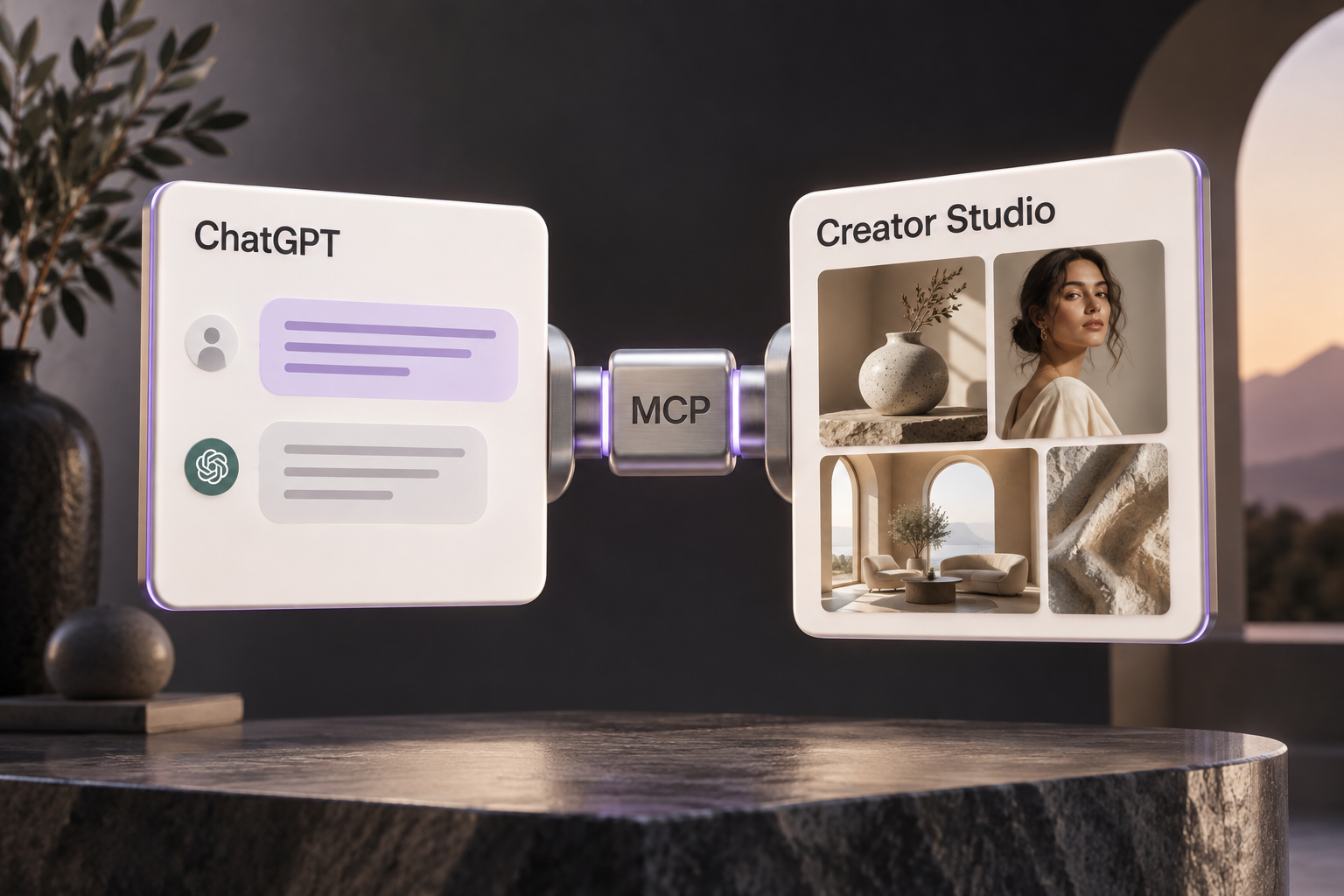
Generate images, video, and audio with your Creator Studio account—from your favorite MCP-compatible AI assistant. That is the direction of Creator Studio’s MCP integration: bring your creative models and tools into the conversation, without limiting you to one chatbot. Image generation and editing are available in the hosted developer preview today; the new video, audio, and speech adapters are implemented locally and awaiting deployment and live validation.
MCP, short for Model Context Protocol, lets an assistant use tools provided by another application. Creator Studio supplies the creative tools, configured providers, and saved library; your assistant helps discover models, prepare requests, and follow the results.
Built around MCP—not just ChatGPT. Whether you prefer ChatGPT, Claude, Grok, or another model, you need a client or agent host that supports this remote MCP connection and its authorization flow. A model name alone does not guarantee native app compatibility. Each client must be tested individually.
Developer preview: the hosted endpoint is live for developer testing. The Creator Studio plugin has not been submitted or published in the public plugin directory. Account linking, generation, and preview display may still need troubleshooting in your client; this guide explains the manual connection path.
What you can do today
- List your hosted Studio and any desktops you have paired, including whether each desktop is online.
- Discover supported image models, their settings, and current generation estimates for the destination you choose.
- Find images in that destination’s library and prepare supported image edits.
- Review and approve an image request, follow its job status, and retrieve a preview. Original results remain in Creator Studio History.
- Recover the status of an interrupted submission without deliberately starting another paid job.
- Authorize access through your account and revoke assistant connections or desktop pairings from Settings.
Coming next: video, audio, and speech
Awaiting rollout: the following additions are implemented in the local and hosted source checkouts, but are not yet deployed or validated with paid provider calls. Do not expect them on the live connection until rollout is confirmed.
- Video generation: supported text-to-video, image-to-video, and reference-image workflows, with model-specific duration, resolution, aspect ratio, start/end frame, and sound controls.
- Audio generation: Seed Audio with supported saved image or audio references and output settings.
- Speech synthesis: supported MiniMax speech models using existing custom voice IDs, with speed, volume, pitch, and emotion controls.
- Voice discovery: query supported provider voice libraries instead of guessing voice IDs. Discovery does not mean paid synthesis is available for every listed model.
- Shared safeguards: exact settings and cost estimates before approval, account-owned reference checks, duplicate-submit protection, job progress, and results saved in Studio History.
Video and audio originals will be available in History; inline image previews do not imply inline video or audio playback. Hosted audio requires an eligible Full plan. Models without a supported pricing estimate cannot be submitted through MCP.
Availability is model- and runtime-specific—not “all models.” Specialized video editing and extension, reference-video input, voice cloning, lipsync, MMAudio, social publishing, ComfyUI workflows, custom providers, and every individual Studio control are outside this expansion. Discover the active runtime’s supported schema before preparing a request.
Upload references to your Creator Studio library first: attachments placed only in the assistant’s chat are not automatically imported.
1. Prepare Creator Studio
- Sign in to your hosted Creator Studio account and confirm you can access the app.
- Choose where you want to generate: hosted Studio, or an online paired desktop. Each destination uses its own library and configured provider credentials.
- In that destination, open Settings → API Keys and configure the providers you want to use. Provider charges and your Studio plan limits still apply.
- Open Settings → Plugins in hosted Studio to find the MCP address and manage authorized connections.
A ChatGPT subscription does not pay for generations made through your Creator Studio providers. You do not paste provider API keys into ChatGPT; they stay with the Studio destination that runs the request.
2. Connect ChatGPT
Use ChatGPT on the web with access to developer-mode custom apps. Availability and workspace permissions depend on your account. OpenAI’s developer-mode guide is the reference if the controls below look different.
- In ChatGPT, open Settings → Security and login and enable Developer mode.
- Open ChatGPT Plugins and use the plus button to create a developer-mode app. Name it Creator Studio.
- Paste this remote MCP server URL into the connection form:
https://ultramuse.art/api/integrations/public/mcp - Choose OAuth authentication. Use dynamic client registration if the form offers a registration choice; Creator Studio does not advertise CIMD. Do not invent a client ID or secret.
- Complete the sign-in and consent flow using your UltraMuse account. Review the requested access before approving it.
- Start a new conversation, choose Developer mode from the composer’s plus menu, and select Creator Studio for that conversation.
Ask: “Use Creator Studio to show my connected destinations and the image models available in my hosted Studio. Do not generate anything yet.” This checks discovery without requesting a paid generation. If you have both hosted Studio and a desktop, name the destination in later requests.
3. Make your first image
Try: “Using Creator Studio in my hosted Studio, prepare one square product photograph of a red ceramic mug on a pale blue background. Show me the model, settings, and estimated cost before generating.”
Review the prepared request. Compatible clients may show an approval card; others show the details as text. Confirm only when the destination, prompt, model, settings, and estimate are right. An estimate is not a guaranteed spending cap, and a prepared request has not generated an image.
After approval, ask the assistant to submit that prepared request and show the returned Creator Studio job ID. You can then ask it to check the job and retrieve the image preview. If the preview does not render in your client, open History in the Studio destination you chose to view and download the original.
For an edit, try: “Use Creator Studio to find my saved mug photograph and prepare an edit with a warmer background. Preserve the mug and show me the estimate first.” Identify the intended library image before approving the edit.
Optional: use your desktop library and providers
- In hosted Creator Studio, open Settings → Plugins → Desktop access.
- Enter a recognizable desktop name and choose Pair a desktop.
- Copy the private pairing into the desktop app’s Settings → Plugins → Private desktop pairing field, then select Connect this desktop.
- Wait for Connected. Keep Creator Studio running and your computer awake and online while using it through the assistant.
- Ask the assistant to list destinations again and explicitly select that desktop for your next request.
Desktop pairing requires a build that includes Settings → Plugins; it may not be present in older installers. Keep the pairing private and paste it only into your own Studio desktop. An offline desktop cannot execute a request, and work is not automatically moved to hosted Studio.
Connecting another MCP client
A client needs support for remote streaming HTTP MCP and OAuth with dynamic client registration. Add the same server URL, complete the UltraMuse sign-in and consent flow, and begin by listing your destinations and available models. Client compatibility must be tested individually; support for MCP alone does not guarantee support for this authentication flow or the interactive approval and preview cards.
If something is not working
- No developer-mode control: check ChatGPT’s current account and workspace requirements in the linked guide, or ask your workspace administrator about custom apps.
- The server URL shows an error in a browser: it is a tool connection endpoint. Add it to the MCP client; opening it as a webpage does not test the authenticated connection.
- No models appear: check provider credentials in the chosen Studio destination. A visible model list alone does not prove those credentials can complete a generation.
- ChatGPT uses its own image generator: select Creator Studio in the conversation and explicitly ask it to use Creator Studio. Look for a Creator Studio job ID after submission.
- An estimate has expired or changed: prepare a fresh request and review it again before approving.
- A submitted request loses connection: ask for the existing request or job status before starting another generation, to avoid paying for a duplicate.
- Tools look outdated: refresh the app connection’s tool definitions in ChatGPT and start a new conversation.
Manage access
In hosted Settings → Plugins → Authorized connections, select Revoke connection to remove an assistant’s access. Under Desktop access, Revoke access removes a paired desktop. You can also choose Disconnect this desktop from the desktop app.
The connected assistant receives the prompts, library information, and result previews needed for the tools you use. Generation providers receive the submitted prompts and media. Your provider credentials remain inside Creator Studio.