New to Creator Studio? Creator Studio is one workspace for making AI photos, videos, social posts, characters, and campaigns. It brings many creative tools together so you do not have to start over in a different app every time you move from an idea to a finished post.
Creator Studio Companion is a small Chrome add-on that connects the websites where you find inspiration to Creator Studio. When you see a useful photo, outfit, pose, or video, Companion can save it or place it directly into the right Creator Studio tool. That means less downloading, hunting through folders, and uploading the same file again.
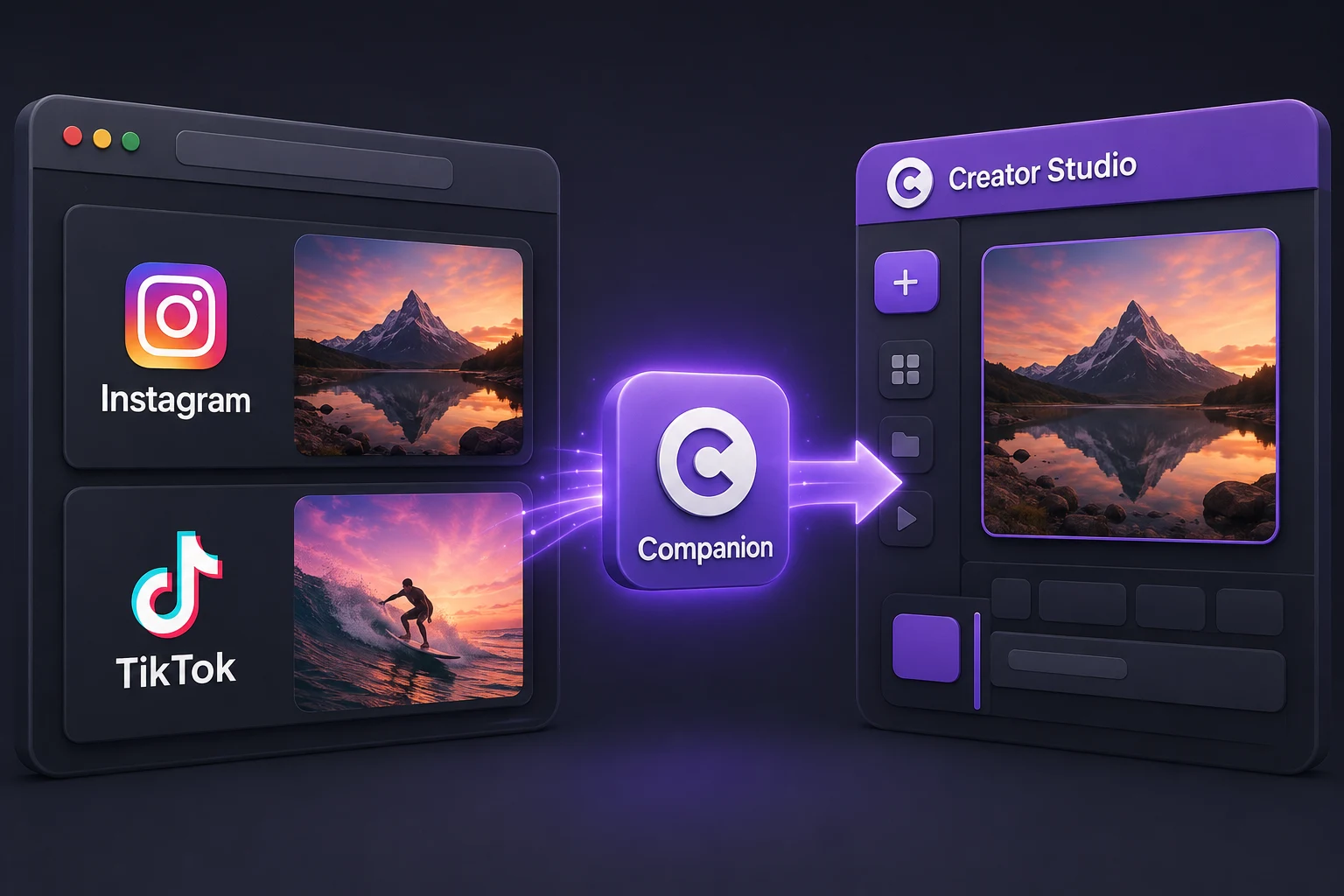
What can you use it for?
Companion is useful whenever something on the web gives you an idea. You can:
- Save an image or video to your Creator Studio Uploads for later.
- Save an outfit to your Closet so you can use it with Try On.
- Keep inspiration together inside a Project.
- Send a photo into Photoshoot or Inspiration Dump.
- Send a Reel into InstaReel or Video Remix.
- Open Try On or Person Swap beside the webpage in Chrome.
You choose the exact photo, video, or carousel slide. Companion does not automatically grab everything on the page.
Before you start
You need Google Chrome and a Creator Studio account. Creator Studio can be the hosted website, the desktop app, or a local installation. If you only use the hosted website, that is completely fine—you can ignore the local and ComfyUI sections near the end of this guide.
Install Companion in Chrome
The installation takes a few minutes. You only need to do it once.
- Open Creator Studio and choose Settings.
- Go to General → Social Discovery → Chrome Extension.
- Choose How to Install, then download the Companion ZIP file.
- Open the downloaded ZIP and extract it to a folder you will keep. Do not delete that folder afterward.
- In Chrome, type
chrome://extensionsinto the address bar and press Enter. - Turn on Developer mode in the top-right corner. This simply allows Chrome to install the downloaded Companion folder.
- Choose Load unpacked and select the folder you extracted.
- Open Chrome’s Extensions menu and pin Creator Studio Companion so it is easy to find.
If Chrome shows a normal permission message, review it and approve the access you want Companion to use.
Connect Companion to Creator Studio
Connecting tells Companion which Creator Studio account should receive the things you select.
- Keep Creator Studio open and make sure you are signed in.
- Return to Settings → General → Social Discovery → Chrome Extension.
- Create a six-digit pairing code.
- Click the Companion icon in Chrome and enter that code.
- Choose Pair, then Test Connection.
Pairing codes expire after a short time for safety. If your code does not work, create a fresh one. Most people only need one connection. If you also use the desktop or local version, Companion can remember those separately and let you choose where each item goes.
Use Companion on Instagram and TikTok
- Open the post or Reel you want to use.
- Choose the exact photo, video, or visible carousel slide.
- Open Companion or use its menu on that media.
- Choose whether to save it or send it straight to a tool.
For videos, choose the original video when you need its movement or sound. Choose the current frame when you only need one still image—for example, a pose or outfit reference.
Instagram and TikTok sometimes limit what can be copied from a post. If a protected or very large video cannot be transferred, Companion will tell you instead of sending the wrong file.
Use Companion on other websites
You can also use Companion on ordinary websites. Open the side panel or right-click directly on the image or video you want. Companion only checks the page after you ask it to, so it is not constantly collecting everything you browse.
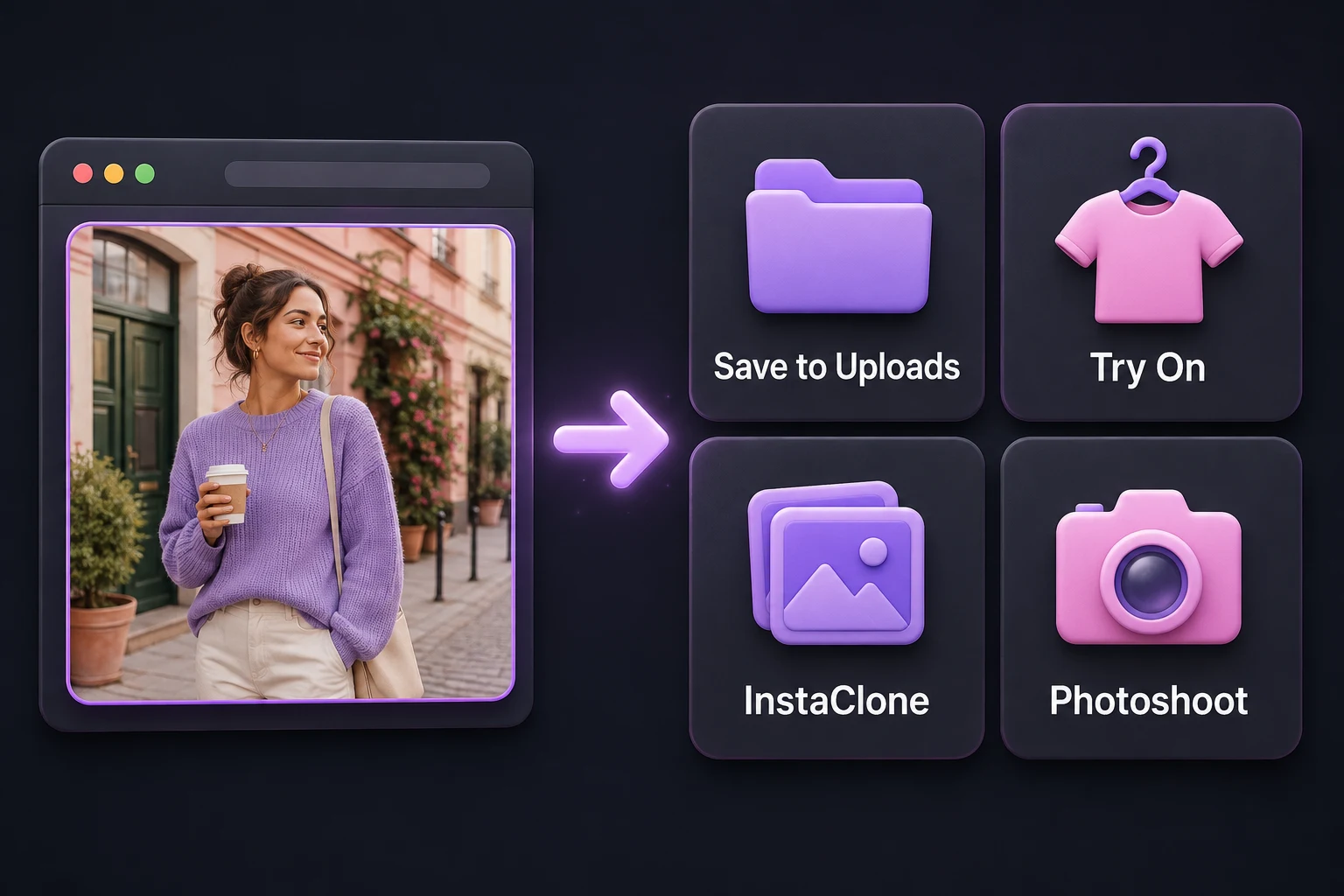
Where should you send something?
- Uploads: the best general choice when you want to keep the media and decide what to do later.
- Closet: use this for clothing and outfit references.
- Project: use this when the reference belongs to a particular campaign or idea.
- Try On: put a captured outfit on a character you select.
- InstaClone: recreate the feel of a selected post with your own character.
- InstaReel: rebuild a selected Reel around your character.
- Photoshoot: use a photo as visual direction for a new campaign.
- Inspiration Dump: collect several references and turn them into a coordinated set.
- Video Remix: use an existing video as the starting point for a new cast or creative direction.
Try On and Person Swap without leaving the webpage
Chrome’s side panel lets you keep the webpage visible while you work.
- Open Companion’s side panel.
- Choose Try On or Person Swap.
- Select the character or base photo from Creator Studio.
- Select the website image you want to use as the outfit or person reference.
- Review your choices and start the job.
You always choose which image fills each role. For example, choosing a new outfit does not replace or remove the person you already selected.
A simple first thing to try
- Find one inspiration photo on Instagram, TikTok, or another website.
- Save it to Uploads.
- Open Creator Studio and confirm that it appears in Uploads.
- Go back to the webpage and send the same photo directly to Photoshoot or InstaClone.
Once those steps work, you are set up. You can explore the other destinations whenever you need them.
Optional: connect the hosted app to ComfyUI on your computer
If you do not use ComfyUI, skip this section. Nothing else in Companion depends on it.
If ComfyUI runs on your computer but you prefer using the hosted Creator Studio website, Companion can connect the two. You keep ComfyUI on your own computer while starting the workflow from Creator Studio.
- Start ComfyUI on your computer.
- Make sure Companion is paired with the hosted Creator Studio account you are using.
- Keep Chrome open while the workflow runs.
- In Creator Studio, open the ComfyUI connection settings and choose the Companion option.
- Test the connection, then use your saved workflows normally.
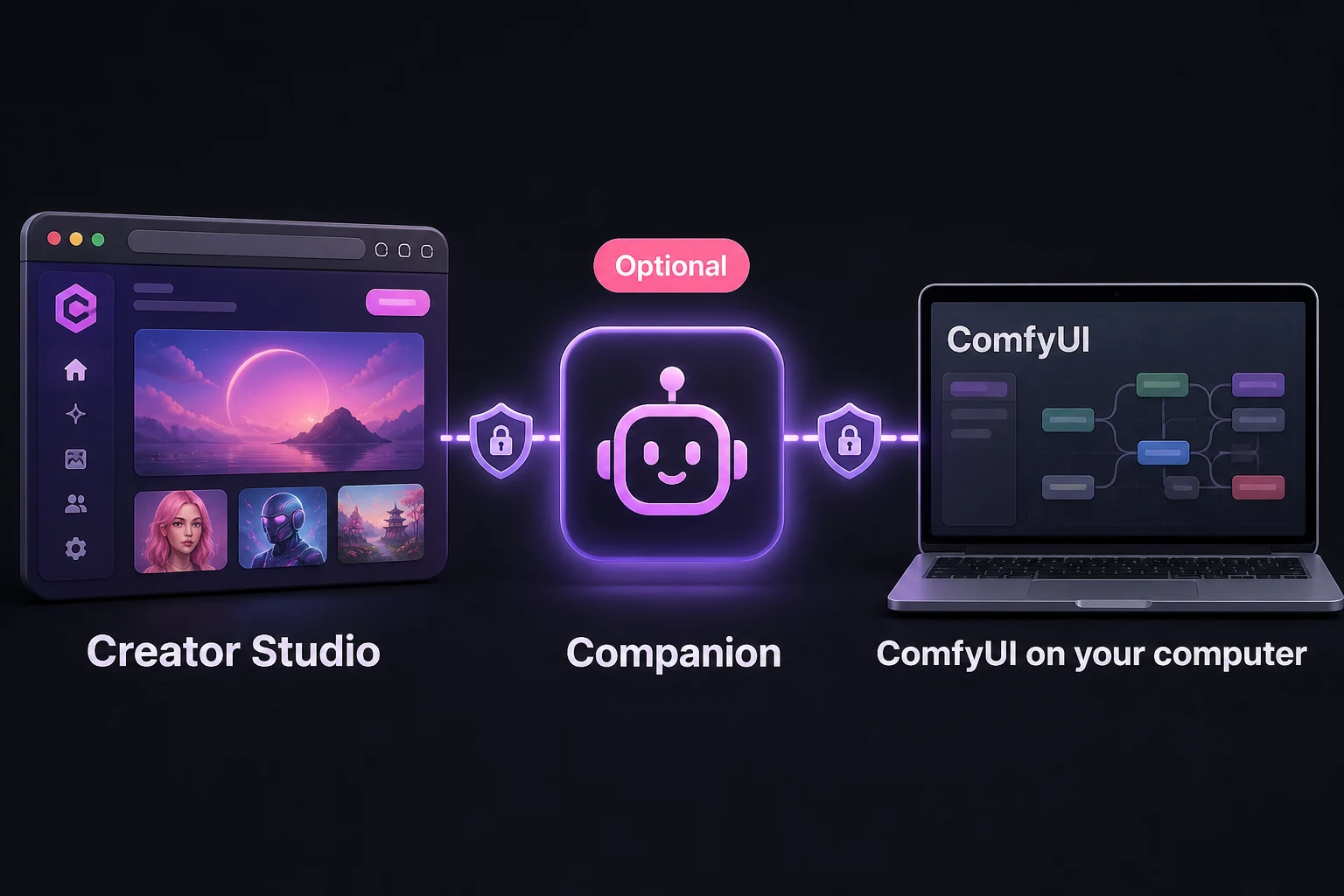
What Companion can and cannot see
Companion is designed around actions you start. It does not ask for your browser passwords, copy your login cookies, or export your API keys. It sends the media you select and a small amount of useful source information to the Creator Studio destination you chose.
Chrome may ask for permission when you use Companion on a new website. You can review that request, remove a website’s access later, or disconnect a Creator Studio destination at any time.
If something is not working
- Companion is not visible: open Chrome’s Extensions menu and pin it.
- The connection test fails: keep Creator Studio open, make sure you are signed in, and pair it again with a fresh code.
- No button appears on a post: refresh the Instagram or TikTok page after installing or updating Companion.
- The wrong carousel photo is selected: move to the slide you want first, then open the Companion action again.
- A video will not transfer: try the original-video action again, or capture the current frame if a still image is enough.
- The wrong Creator Studio opens: choose the correct saved destination in the Companion popup and make it your default.
- Companion needs an update: download the newest ZIP from Creator Studio, replace the old extracted folder, and click Reload on
chrome://extensions.
That is the whole idea: find inspiration where you already browse, choose exactly what you want, and let Companion carry it into Creator Studio so you can start creating sooner.